An IT analyst types a dozen one-liner replies a day. "Sorted, please test." "Quote attached — let me know if you want to proceed." "Cost is £250, ok?"
Each one needs to land in the requester's inbox as a proper email. Greeting. Capital letters. A polite ask. A sign-off. And probably a one-line reference to what the ticket was actually about, because the requester opened it three days ago and has had a hundred other things happen since.
Most analysts spend twenty or thirty seconds turning each one-liner into something presentable. Across a busy day that adds up to half an hour of typing the same boilerplate. The same "Dear [name],". The same "Kind regards,". Friction at exactly the moment when an analyst wants to be moving onto the next thing.
The Tickets module ships with a small but well-disciplined fix for that pattern: a ★ Cleanup button next to Send in the reply window. You type the rough draft — even just two or three words — click Cleanup, and Claude streams back a properly formatted email. With strict guards against the things AI usually does wrong.
From "cost is £250 - ok?" to a proper email, in one click. Without the AI inventing details that weren't there.
What it actually feels like
Here's a real ticket. The requester is asking for an Adobe Creative Suite renewal for her design team. The analyst has spoken to the reseller and got a quote back. Now she needs to relay that to the requester for approval.
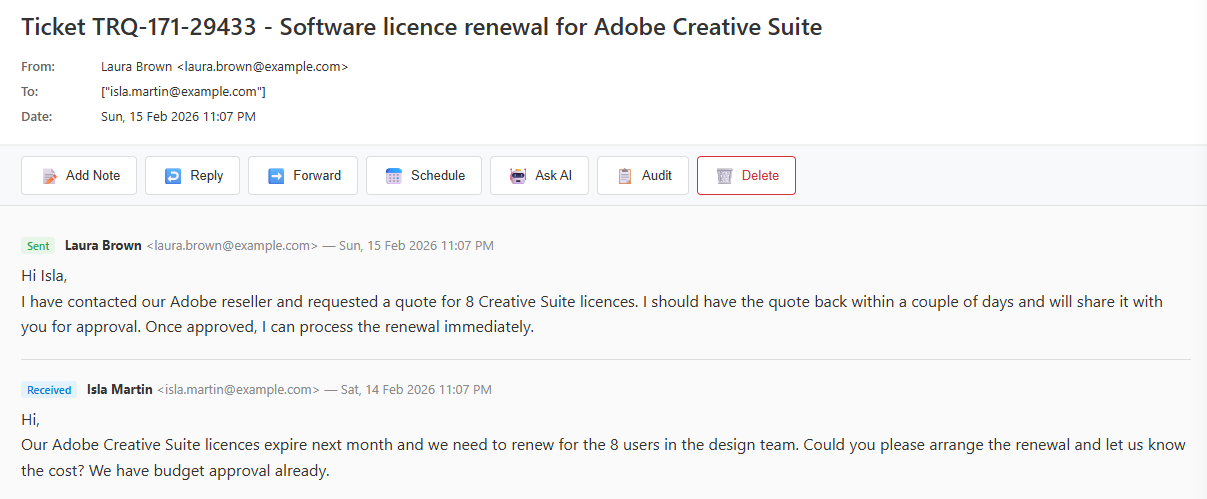
She hits Reply. She types the reply she'd type to a colleague: "cost is £250 - ok?". Five words. No greeting, no sign-off, no detail.
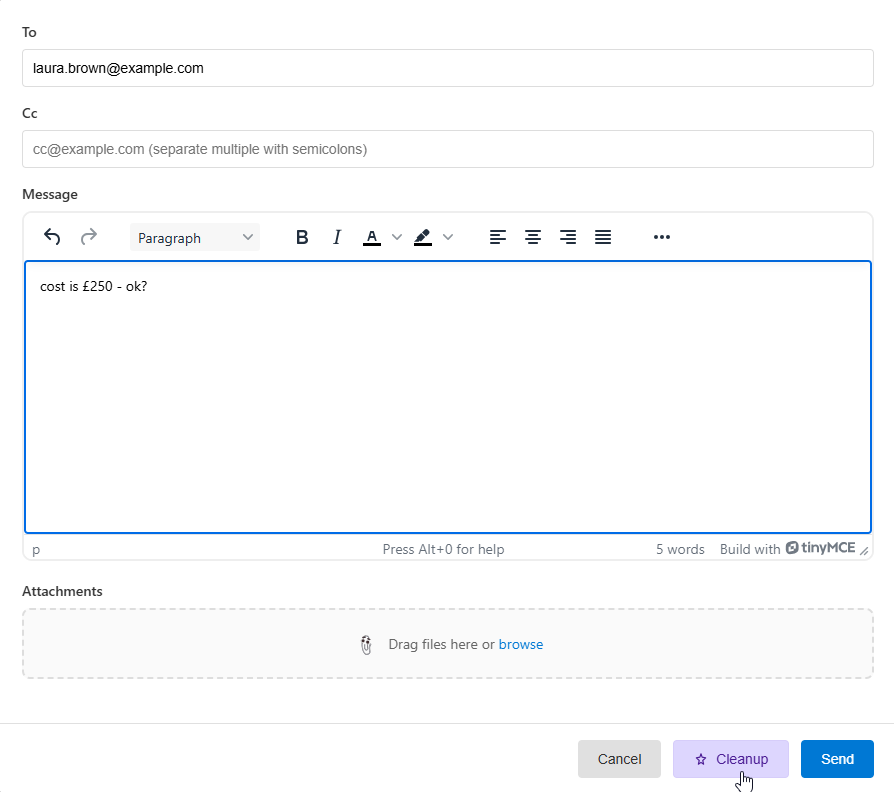
She clicks Cleanup. The text streams in live, character by character — same effect as typing into Claude's website. The result, two seconds later:
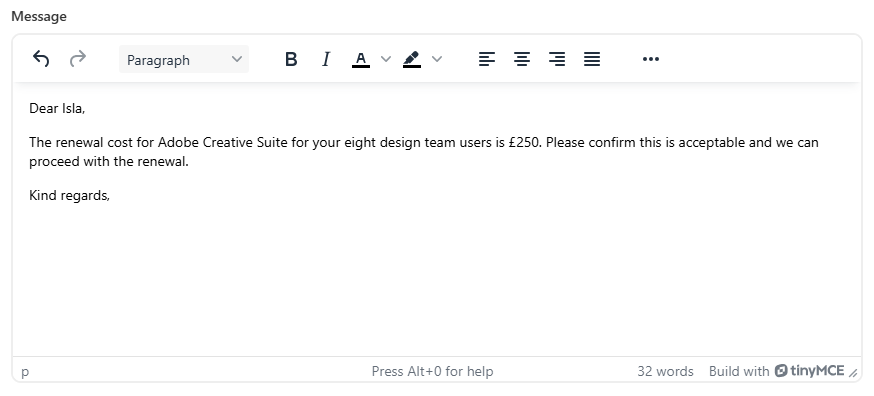
Notice what happened. The five words "cost is £250 - ok?" became a complete email. "Dear Isla," uses the requester's first name. The body refers to "Adobe Creative Suite for your eight design team users" — the AI pulled "Adobe Creative Suite" and "eight users" from the original email body on the ticket. The cost £250 came from the analyst's draft. The polite ask — "please confirm this is acceptable and we can proceed with the renewal" — came from the analyst's "ok?". "Kind regards," rounds it off.
32 words. Reads like the analyst typed it themselves. The boilerplate disappears.
The hard part: stopping the AI from inventing things
Anyone who has played with a chat assistant for five minutes knows what AI wants to do when given a one-liner: write a paragraph. Apologise. Add reassurances about how the issue has been "thoroughly investigated and resolved". Wrap up with a confident "please don't hesitate to reach out". Three sentences become twelve.
That's exactly what you don't want from an analyst's reply. The whole point is that the analyst has been brief on purpose — they don't want to over-promise, they don't want to fabricate context, they don't want to write a sentence claiming they "verified everything is working as expected" when they didn't.
So the system prompt running behind Cleanup is heavy on negative examples and hard constraints. It's instructed to never:
- Invent technical details, dates, ticket numbers, or facts not in the draft or ticket context
- Generalise or rename the problem (an "Outlook crash" must not become "your email problem")
- Add apologies, explanations, recommendations, or extra next steps the analyst didn't write
- Pad short drafts into multiple paragraphs
And it's anchored with a deliberately ugly example of what not to do, sitting alongside the correct version:
Wrong — do not do this
Dear Sarah,
I'm pleased to inform you that I've successfully resolved the issue with Outlook crashing on startup. After investigating, I identified the root cause and applied the necessary fix. Outlook should now launch and run smoothly without any crashes. Please test it thoroughly and let me know if you encounter any further issues.
Kind regards,
Correct for the same draft "fixed"
Dear Sarah,
The issue with Outlook crashing on startup has been resolved. Please test it and let us know if you experience any further problems.
Kind regards,
Showing the AI a literal example of bad behaviour — alongside the corresponding correct one — is more effective than rules alone. The prompt has four positive examples covering different ticket types, plus that one explicit negative.
The mouse problem
One subtlety the prompt has to handle: the verb at the end of the email depends on the kind of ticket. For a technical fault, "please test it" makes sense. For an account-access issue, it's "please try logging in". For a software install, "please launch it and confirm it's working".
For a hardware delivery — a new mouse, a replacement keyboard, a delivered laptop — "please test it" is wrong. You don't test a delivered mouse. The prompt explicitly forbids the words "test" or "re-test" for delivered hardware and instructs the AI to use "please confirm it's set up correctly" or "please let us know if you have any issues setting it up" instead.
The prompt makes the AI pick a verb from a list, situation by situation:
- Technical issues → "please test it and let us know"
- Account / login → "please try logging in and confirm it works"
- Software install → "please launch it and confirm everything's working"
- Hardware delivery → "please confirm it's set up correctly" — never "test"
- Information request → no verification ask at all
It's the kind of detail you don't notice when it works and feel immediately when it doesn't. The first version of the prompt didn't make this distinction and produced a result asking a user to "re-test" a delivered mouse. The mouse problem is now hardcoded into the prompt.
How it actually works
Under the hood, the flow is straightforward:
The model is configurable. By default it's Claude Haiku 4.5 — the smallest, fastest, cheapest model in the Claude family. For a task that's mostly grammar fixes and template-filling, the bigger models would be wasted spend. Sonnet and Opus are available in the dropdown if you want to spend more for marginal quality gains.
If something goes wrong — network drops, API error, key not configured — the analyst's original draft is restored automatically. They never lose typing. After a successful cleanup an Undo link appears below the editor for thirty seconds, with a live countdown, in case the rewrite isn't quite right and the analyst wants their original back.
Per-feature billing visibility
FreeITSM has four AI features at the time of writing: Ask AI on Knowledge, the AI Form Builder, the RFP Builder, and now Reply Cleanup. They could all share one Anthropic API key. They don't.
Each feature has its own API key, configured in its own module's settings. The reason is billing transparency. Anthropic supports workspaces — multiple keys under one account, with the dashboard breaking spend down per workspace. By giving each FreeITSM AI feature its own key, your Anthropic billing dashboard becomes a per-feature usage report. You can see exactly which AI feature is consuming budget without writing a single line of analytics code.
It's slightly more setup friction the first time — one key per feature instead of one shared key. It pays off every time you check the bill. "AI is costing £X this month" turns into "Reply Cleanup is £Y, RFP Builder is £Z, Knowledge is £W" — and that's the data you actually need to make decisions about which features to invest in or where to cut.
Customisation without footguns
Every organisation has its own conventions. Some teams sign off "Kind regards", some "Best regards", some "Many thanks". Some refer to the company by its formal name throughout, others by an abbreviation. Some are British English, some American.
The settings page handles this with two halves:
The full system prompt is shown read-only. Click "View system prompt" and you can see the exact instructions Claude is given. The greeting name appears as a placeholder; the tone clause reflects whichever tone you've chosen (Friendly, Formal, or Brief). It's there for transparency — the AI isn't a black box, you can read what it's been told.
Custom instructions sit in a separate textarea. Anything you write here is appended to the system prompt at runtime under a dedicated heading. "Always sign off with Many thanks instead of Kind regards". "Refer to the company as BillCorp". "Use British English spellings throughout". The custom instructions are appended after the safety scaffold, so they can't override the don't-fabricate rules — they layer on top.
It's the kind of split that lets the feature be customisable without giving anyone the chance to accidentally remove the guard rails. The most-requested customisation (sign-off phrasing, company name) is one textbox away. The hard safety rules are not.
What changes for you
Without Cleanup, the analyst's day is full of micro-friction at every reply. Type the answer in their head — "sorted, please test" — then translate it into "Dear Sarah, the issue you reported has been resolved. Please test and let us know if you have any further problems. Kind regards". Then send. Repeat thirty times.
With Cleanup, the analyst types the answer in their head, hits a button, and skims the result. The translation step is gone. The boilerplate is gone. What's left is the actual decision — is this draft right? — which is what the analyst should be spending their attention on anyway.
The time saved isn't really the point. The point is reducing the cost of doing the right thing — sending a polite, well-formatted email that the requester can actually read — so analysts do it more often, instead of firing back two-word replies that look brusque and confuse the requester. The AI does the polish. The analyst keeps moving.
The boilerplate disappears. The analyst's attention is freed up for the bit that actually matters.